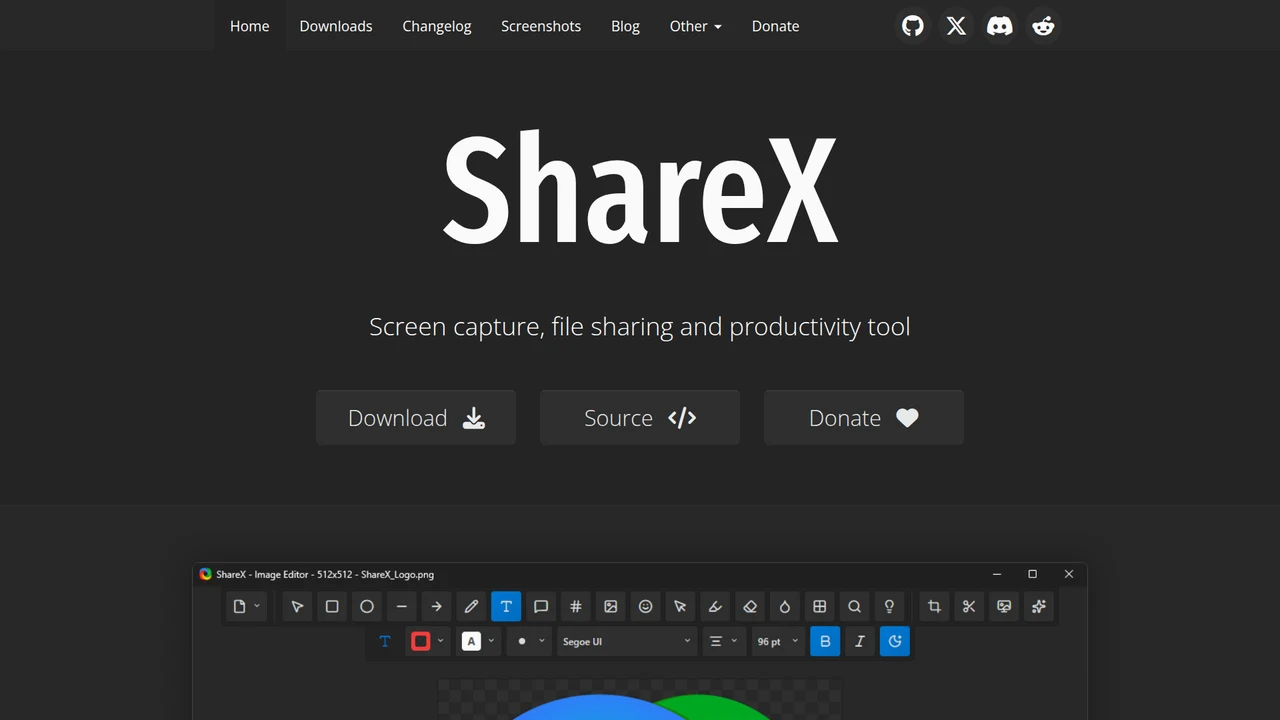
PrtScn copies your screen to the clipboard, and then nothing happens. You paste it into Paint, crop it by eye, save it under a name you will not recognise tomorrow, and drag the file into a chat window. ShareX turns that whole routine into one key.
One keystroke, and the file is already a link
ShareX is a free screen-capture tool for Windows. Every capture runs through a short checklist you choose once — annotate, save, upload, copy the link — so the job is finished by the time you let go of the key.
- Cost — free, with no paid tier, no account and no ads; open source under the GPL-3.0.
- Platform — Windows only, installed from the website, GitHub releases, the Microsoft Store or Steam.
- Version — 21.0.0, released on 3 July 2026, from a project that began in 2007 as an uploader called ZScreen.
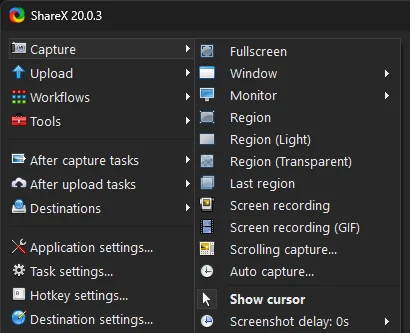
The main window opens as an empty task list, and that is normal. Everything you need lives in the menu down its left edge, and this guide follows it from top to bottom: capture, annotate, choose what happens next, then the extras.
Five keys that work straight after installing
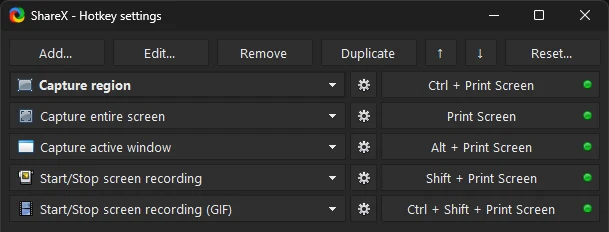
You do not have to set anything up to start. ShareX registers these hotkeys on first launch, and every capture they take goes through the same after-capture checklist.
| Key | What it does |
|---|---|
Ctrl + PrtScn |
Capture a region you drag — the one you will use most |
PrtScn |
Capture the entire screen |
Alt + PrtScn |
Capture the active window |
Shift + PrtScn |
Start or stop an MP4 screen recording |
Ctrl + Shift + PrtScn |
Start or stop a GIF recording |
A red dot instead of a green one means another program already owns that key. On Windows 11 the usual culprit is the Snipping Tool, and turning off its Print screen option under Settings › Accessibility › Keyboard gives the key back. Rebind anything in Hotkey settings…, where Add… also gives a key to the captures that ship without one, such as scrolling capture and OCR.
Drag, release, done
Press Ctrl + PrtScn and the screen freezes under a crosshair with a magnifier beside it. Drag over what you want and let go, and the capture is taken.
- Take a whole monitor instead — press
Spacefor the full screen,1,2or3for a numbered monitor, or~for the monitor under the cursor. - Back out —
Escor a right-click closes the region picker without capturing anything. - Hit the same spot again — Capture › Last region reuses the previous rectangle, which is ideal for before-and-after shots.
- Get the edges exact — the arrow keys move the cursor one pixel at a time, and holding
Shiftkeeps the proportions while you drag.
Mark it up before anyone sees it
To annotate every shot, open After capture tasks and tick Open in image editor. Each capture now stops in the editor first. Press Enter to carry on with your changes, or Esc to cancel the whole task.
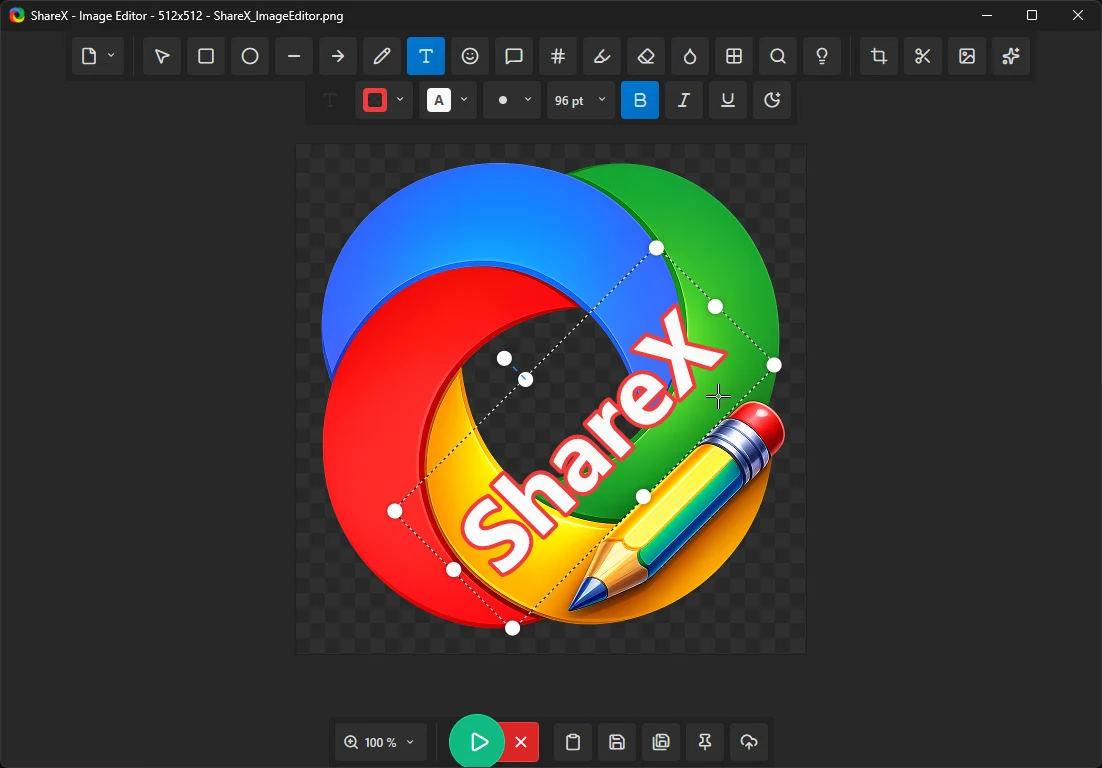
The drawing tools answer to single letters, and nearly every letter is the first letter of the tool. The same letters work while you are still dragging a region, so you can drop an arrow on the screen before the shot is taken.
| Key | Tool | Why that letter |
|---|---|---|
R |
Rectangle | First letter; the default shape. |
E |
Ellipse | First letter. |
A |
Arrow | First letter; the annotation you will reach for most. |
T |
Text with background | Text, as a filled label. |
O |
Text with outline | Outline — the other text style needs its own letter. |
S |
Speech balloon | Say something. |
I |
Step | Think increment: markers that count 1, 2, 3. |
B |
Blur | First letter; hides names and tokens. |
P |
Pixelate | First letter; the more obvious redaction. |
H |
Highlight | First letter; the marker pen. |
C |
Crop | First letter. |
X |
Cut out | Strike out a band of the image and close the gap. |
Before you share anything, run B or P over names, email addresses and tokens. The 21.0.0 editor also lets you rebind any of these letters through Customize toolbar in its Options dialog.
Choose what happens after the shot
The After capture tasks menu is the heart of ShareX: a list of jobs that run in order on every capture. Items in bold are switched on.
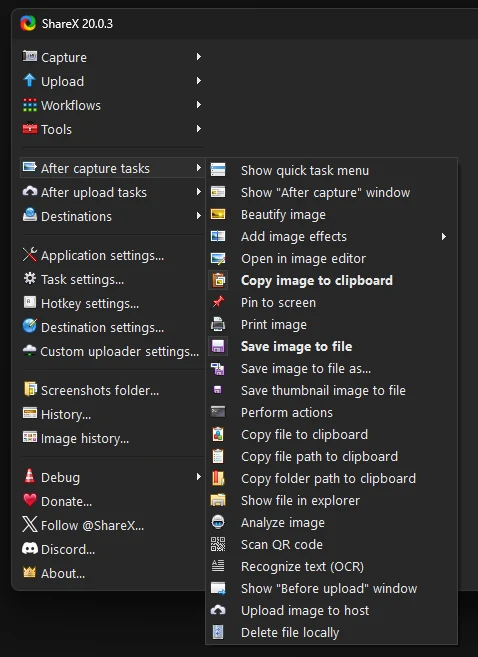
A fresh install does exactly two things with each shot: it copies the image to the clipboard and saves it to your Screenshots folder. Nothing is uploaded until you ask for it. To get a link instead of a file, change three settings once.
- Open Destinations › Image uploader and pick where images should go — the preset is Imgur, so change it if a public image host is the wrong place for your screenshots.
- Under After capture tasks, tick Upload image to host.
- Under After upload tasks, leave Copy URL to clipboard ticked — it is on by default, and it is what puts the link in your paste buffer.
There is no ShareX cloud behind any of this. Destinations include object stores such as Amazon S3 and Cloudflare R2, FTP, or your own server through a custom uploader that describes any HTTP upload API. Their credentials sit in your local ShareX settings, so treat a synced or shared profile like any other secrets file.
Two hotkeys, two habits
Editing the menu changes the checklist for every hotkey at once, which is rarely what you want. The better setup gives each hotkey its own checklist, and most people settle on two.
- Keep it —
Ctrl+PrtScn: region, open in the editor, save locally, never upload. - Share it — a second key such as
Ctrl+Alt+PrtScn: region, upload, link on the clipboard.
To build the second one, open Hotkey settings…, click Add…, pick Capture region and press the new key. Then click the gear beside it and override the after-capture and after-upload tasks for that hotkey alone. Scripts can run the same chain with the command-line switch -workflow "name", where the name is the hotkey's description.
Long pages, recordings, and text you cannot select
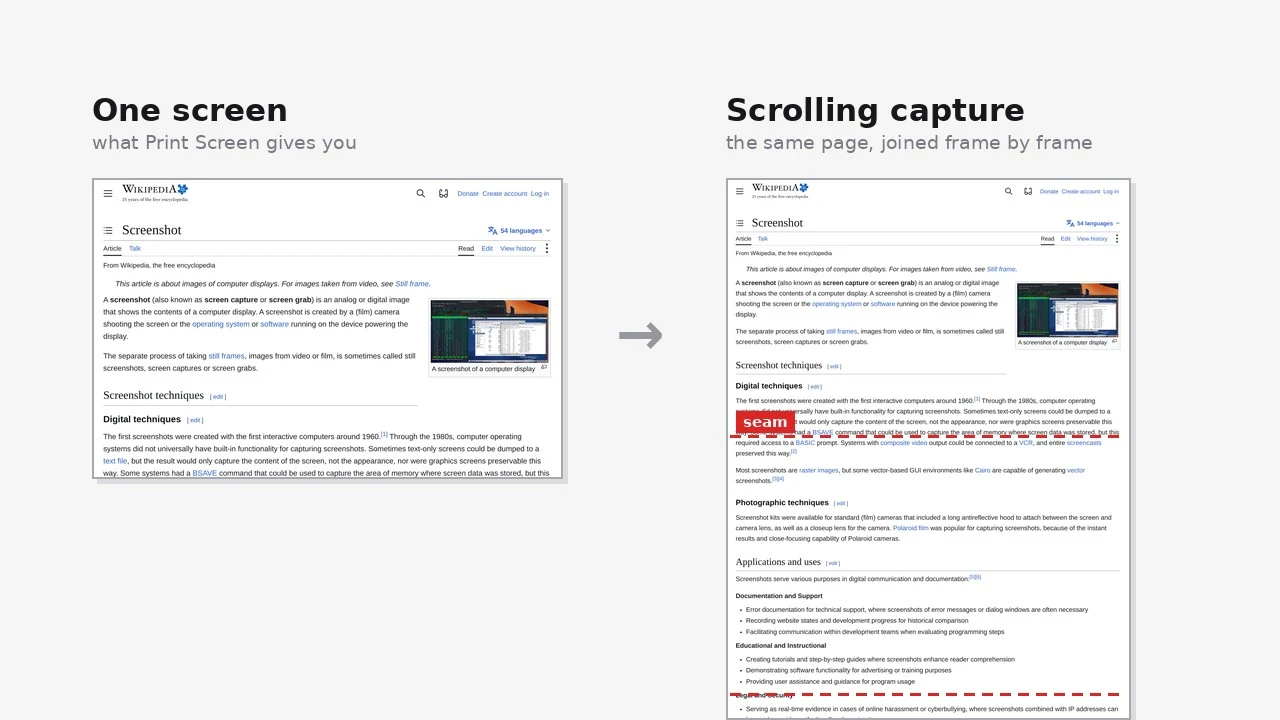
- Scrolling capture — choose Capture › Scrolling capture…, select the area that scrolls, and ShareX scrolls it and stitches the frames into one tall image. A green, yellow or red badge shows how cleanly the frames matched. Leave sticky headers out of the selection and park the cursor on the scrollbar so hover effects do not spoil the match.
- Screen recording — press
Shift+PrtScn, drag a region, and press the same key again to stop. The bundled FFmpeg writes an MP4 that is plenty for a bug report. - OCR — choose Tools › OCR… and select a region to pull out its text, perfect for the error dialog that will not let you copy its message. It reads the languages installed in Windows, so adding a language in Windows settings adds it to ShareX.
The Tools menu, before you install another app
Under Tools sits a drawer of utilities that have little to do with screenshots. Check it before you download a separate app for any of them.
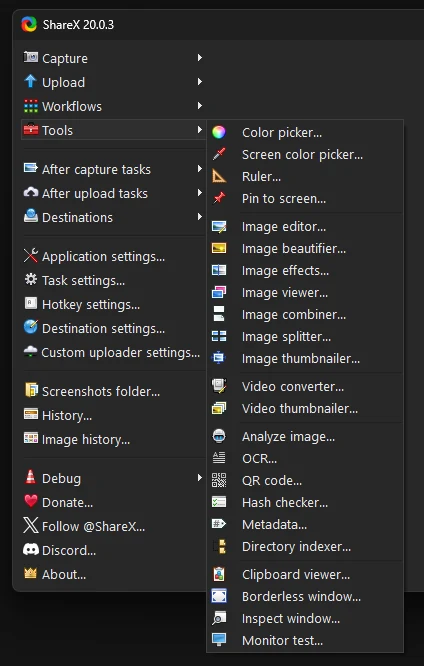
- Pin to screen — float an image above every window while you work from it; the mouse wheel scales it and
Ctrl+ wheel fades it. - Color picker and Ruler — sample the colour of any pixel on screen, or measure a distance in pixels.
- Background remover — new in 21.0.0, it cuts the subject out of an image on your own machine, once you have downloaded one of the models it links to.
- Image comparer — also new in 21.0.0, it shows what changed between two versions of a picture.
- QR code and Hash checker — read or create a QR code, or confirm a download's checksum.
Worth the settings screen?
The price of ShareX is not money, it is configuration. There are dozens of options, and some only make sense once the checklist model has clicked. If you want a snipper that needs no setup at all, this is the wrong tool, and it still runs on Windows alone.
Install it if you send screenshots to other people all day — support, QA, documentation, code review, teaching — and the last step is always "now paste it somewhere". The upload-and-copy-link hotkey removes a real, repeated chore, and the editor is good enough to replace a separate one. Bug reporters gain the most, because numbered steps plus a short recording answer most of what a maintainer would otherwise have to ask.
Skip it if you take a screenshot twice a week, where the Snipping Tool that came with Windows is already enough, or if you need the same tool on macOS and Linux, where Flameshot is the closest cross-platform match. Greenshot is the lighter Windows alternative if the checklist idea is more machinery than you want, and ScreenToGif beats ShareX at trimming and editing a recording afterwards.
No comments yet