Everyone who works over SSH learns the same lesson the same way. You start a long build on a remote box, the train goes into a tunnel, the connection drops, and the build dies with it — not paused, not backgrounded, dead, along with the forty minutes it had already done. Then someone tells you about tmux and that whole category of problem quietly disappears. That's the pitch, and it undersells things.
Introduction
What it is
tmux is a terminal multiplexer: one terminal window, many shells inside it, and — the part that matters — those shells no longer belong to the window. Normally a shell session is owned by the terminal it was opened in; close the window, kill the app, lose the wifi, and the shell gets a hangup signal and everything it was running goes with it. Tmux runs a small server in the background that owns your shells, and your terminal is merely a client attached to it. Detach the client and the shells keep running. Attach again from another window, another SSH connection, another machine three days later, and the same session is waiting, scrollback and all.
Nicholas Marriott wrote it in 2007 for OpenBSD, where it has shipped in the base system since 2009. It is ISC-licensed, has essentially no dependencies, and is in every package manager. Its primary purpose is exactly the tunnel problem above: make a working terminal session outlive the connection that created it.
Its core functions
Everything else follows from that one structural change:
- Sessions that persist — detach, log out, come back, resume.
- Windows — full-screen tabs inside a session, one per task.
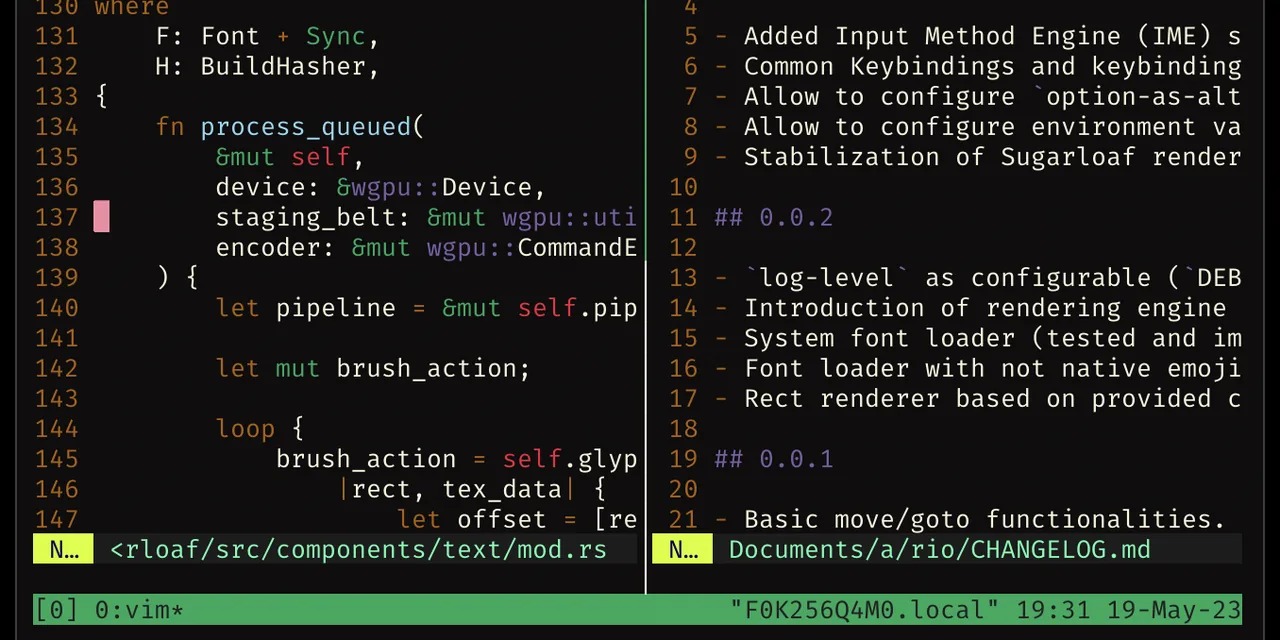
- Panes — splits inside a window, so a log, an editor and a shell share one screen.
- Copy mode — a keyboard-driven scrollback with search, selection and paste, independent of the terminal app.
- Scriptability — every action is a command, so a whole project layout can be a shell script you commit.
- A config language — keys, colours, status bar and behaviour, all in
~/.tmux.conf.
Core usage
Everyday features
Install. It's already on most servers you'll SSH into; otherwise:
sudo apt install tmux      # Debian / Ubuntu
sudo dnf install tmux      # Fedora
brew install tmux          # macOS
Sessions. Three commands deliver most of the value:
tmux new -s work     # start a named session
tmux ls              # list what's running
tmux attach -t work  # reattach to it
To leave a session without killing it, press Ctrl-b then d — detach. Run that on a remote box, close the SSH connection, and whatever you left running is still going. Come back tomorrow, tmux attach -t work, and you're back in the room. If you only ever learn new -s, d and attach -t, tmux has already paid for itself.
The prefix key. Tmux commands are two keystrokes: a prefix, then a key. The default prefix is Ctrl-b; "split the pane" is Ctrl-b then %, pressed in sequence, not together. The prefix exists because tmux must pass almost every key straight through to the program you're running — it is the one reserved doorbell. Below, prefix means "press Ctrl-b, release, press the next key". prefix ? lists every binding, which is the only cheat sheet you need.
Panes and windows. A window is a full screen (think tab); a pane is a split within one window; a session holds windows and is the thing that survives detaching.
| Do this | Press |
|---|---|
| Split left / right | prefix % |
| Split top / bottom | prefix " |
| Move between panes | prefix + arrow key |
| Zoom one pane full-screen (toggle) | prefix z |
| Close the current pane | prefix x |
| New window | prefix c |
| Jump to window 1, 2, 3… | prefix 1, prefix 2, … |
| Next / previous window | prefix n / prefix p |
| Rename the current window | prefix , |
| Pick a window or session from a list | prefix w / prefix s |
| Detach | prefix d |
prefix z is the one people underrate: split the screen four ways, zoom into whichever pane needs your attention, unzoom. No window management, no mouse.
A config worth stealing. Default tmux is usable but austere. Put this in ~/.tmux.conf:
# Ctrl-a is easier to reach than Ctrl-b (and matches GNU screen)
set -g prefix C-a
unbind C-b
bind C-a send-prefix

set -g mouse on              # click panes, drag borders, scroll naturally
set -g base-index 1          # windows start at 1, matching the keyboard
setw -g pane-base-index 1
set -g renumber-windows on   # no gaps after closing a window
set -g history-limit 50000   # generous scrollback
set -sg escape-time 10       # stop vim's Esc feeling laggy
set -g default-terminal "tmux-256color"

# Splits that keep the current directory, on keys shaped like the split
bind | split-window -h -c "#{pane_current_path}"
bind - split-window -v -c "#{pane_current_path}"

# Reload config without restarting
bind r source-file ~/.tmux.conf \; display "config reloaded"
Then prefix : and source-file ~/.tmux.conf once to pick it up. set -g mouse on is the line that converts most sceptics: scrolling works, panes resize by dragging, and none of the keyboard bindings go away.
Lesser-used and advanced functions
Copy mode. prefix [ enters a scrollback you can move through with arrow keys or vi keys, search with / and ?, select with Space, copy with Enter, and paste later with prefix ]. q leaves. With setw -g mode-keys vi the whole thing behaves like vim, which is what most people end up wanting.
Attach-or-create. tmux new -A -s work attaches to work if it exists and creates it otherwise — the right command for a shell alias, because it's idempotent.
Type into every pane at once. prefix : then setw synchronize-panes on mirrors your keystrokes to all panes in the window. Four servers, one apt upgrade. Turn it off before you forget it's on.
Rearranging. prefix { and prefix } swap the current pane with its neighbour; prefix Space cycles the built-in layouts (even-horizontal, tiled, main-vertical…); prefix ! breaks a pane out into its own window; prefix q flashes the pane numbers so you can jump straight to one.
Nested tmux. Running tmux inside an SSH session that is itself inside tmux is common. Press the prefix twice to send it to the inner one — that's what the send-prefix line in the config is for.
Sharing a session. Two people who attach to the same session see the same screen — the simplest pair-programming or "watch me deploy" setup there is, needing nothing but a shared user on one machine.
Scripting a project layout. This is where tmux stops being a safety net and becomes a tool. Because every action is a command, a project's working environment becomes a file you can commit:
#!/usr/bin/env bash
# dev.sh — attach if it exists, otherwise build it
tmux has-session -t island 2>/dev/null && exec tmux attach -t island

tmux new-session -d -s island -c ~/island
tmux rename-window -t island:1 editor
tmux new-window    -t island -n server -c ~/island
tmux send-keys     -t island:server 'pnpm dev' C-m
tmux new-window    -t island -n logs   -c ~/island
tmux send-keys     -t island:logs 'pm2 logs' C-m
tmux select-window -t island:editor
exec tmux attach -t island
One command and the editor, the dev server and the log tail come up where they were yesterday. On a server it doubles as a poor man's process supervisor — for anything that genuinely matters, use a real one.
Command explanations
Tmux's vocabulary looks arbitrary until you see where each piece comes from. Most of it is either a plain initial, a shape, or an inheritance from GNU screen or vi.
| Command or key | Read it as | Why it's spelled that way |
|---|---|---|
tmux |
terminal multiplexer | The name is the job; mux is the standard shortening of multiplexer in Unix (ttymux, demux). |
-s work |
session | new-session -s names the session you are creating. |
-t work |
target | Every command that acts on something existing takes -t: attach to, send keys to, kill that. -s creates, -t points. A target can be session, session:window or session:window.pane. |
-d |
detached | new-session -d starts the session without attaching your terminal — what scripts want. |
-A |
attach if it exists | new -A -s x: attach-or-create in one call. |
-n editor |
name | Names a window, as -s names a session. |
-c ~/proj |
change directory | Sets the start directory, after the shell builtin cd. |
set -g |
global | Sets the option for all sessions rather than the current one; -sg is a server-level global (the server has options too, like escape-time). setw is set-window-option. |
C-m in send-keys |
control-M | Enter is ASCII 13, carriage return, which the terminal writes as Ctrl-M. send-keys ... C-m is "type this, then press Enter". |
Ctrl-b prefix |
the doorbell | GNU screen used Ctrl-a, which collides with "beginning of line" in every readline shell; tmux picked the next letter along. No mnemonic — which is why so many configs move it back to C-a. |
prefix % / prefix " |
the shape of the split | % is two blobs with a slash between them — a left/right divide; " is two marks stacked — a top/bottom stack. The glyph is the mnemonic. |
prefix c |
create | New window. |
prefix d |
detach | Leave the session running. |
prefix x / prefix & |
cross it out / and-then-what | x kills the pane; & (the bigger, rarer key) kills the whole window, with a confirm. |
prefix z |
zoom | Toggle one pane to full size. |
prefix , / prefix $ |
rename window / rename session | , is the small cheap key for the frequent action; $ — the shell-prompt sign — for the session, the thing your shells live in. |
prefix [ / prefix ] |
open / close bracket | [ opens copy mode, ] pastes what you copied; the brackets pair up the two ends of the operation, an idiom borrowed from screen. |
prefix w / prefix s |
windows / sessions | The interactive choosers. |
prefix n / prefix p / prefix l |
next / previous / last | Window navigation, the same letters vi and screen use. |
prefix ? / prefix : |
help / command line | ? lists keys, : opens a command prompt — both straight from vi. |
prefix q |
query | Briefly shows pane numbers; press one to jump. |
prefix ! |
bang it out | Breaks the pane into its own window. |
Two patterns cover most of the table: initial letters (c, d, z, n, p, w, s, -s, -t, -d, -n, -c) and shapes or punctuation with a picture in them (%, ", [, ], !, $). Once you see that, the bindings stop being a list to memorise.
Summary & evaluation
Tmux does one structural thing — it separates your shells from your terminal window — and everything useful about it is a consequence. It is small, stable, everywhere, and its whole interface fits in prefix ?. The default look is bleak and the default prefix is awkward; the fifteen-line config above fixes both, and after that there is very little to configure again.
Get it if you ever work over SSH, run anything that takes longer than a coffee, or keep more than two terminal windows open for one project. Skip it if you only work locally in an IDE with an integrated terminal and never lose a connection — though the split panes may still win you over.
Alternatives. GNU screen does the same core job, is older and slightly more likely to be preinstalled; tmux has the better config language, better splits and far more active maintenance. Zellij is the modern Rust take, with the keybindings shown on screen — friendlier on day one, smaller ecosystem, and less likely to already be on a box you SSH into. Mosh isn't a competitor but the other half: mosh survives roaming and flaky links, tmux survives disconnection entirely, and together a laptop lid closing on a train stops being an event.
Start with one habit: tmux new -s work before your next long-running remote command, and prefix d instead of closing the terminal. Add the config next week. Add the layout script once you notice you type the same four commands every morning.
Wiki and docs: https://github.com/tmux/tmux/wiki Manual: https://man.openbsd.org/tmux

No comments yet